
Syncing Eloqua to Justuno
This article will cover how to connect Eloqua to Justuno, available functionality, and any additional requirements.
On this page:
Introduction to Eloqua & Justuno
Eloqua is a marketing automation platform (part of Oracle) that specializes in email marketing and lead management for B2B and ecommerce brands. Once connected, users can automatically pass any new contacts and associated data collected by Justuno to specified lists/programs within Eloqua.
Connecting the integration
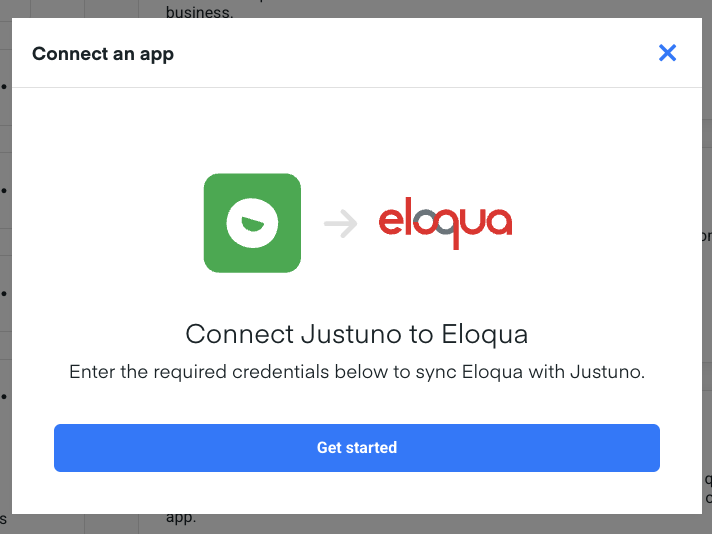
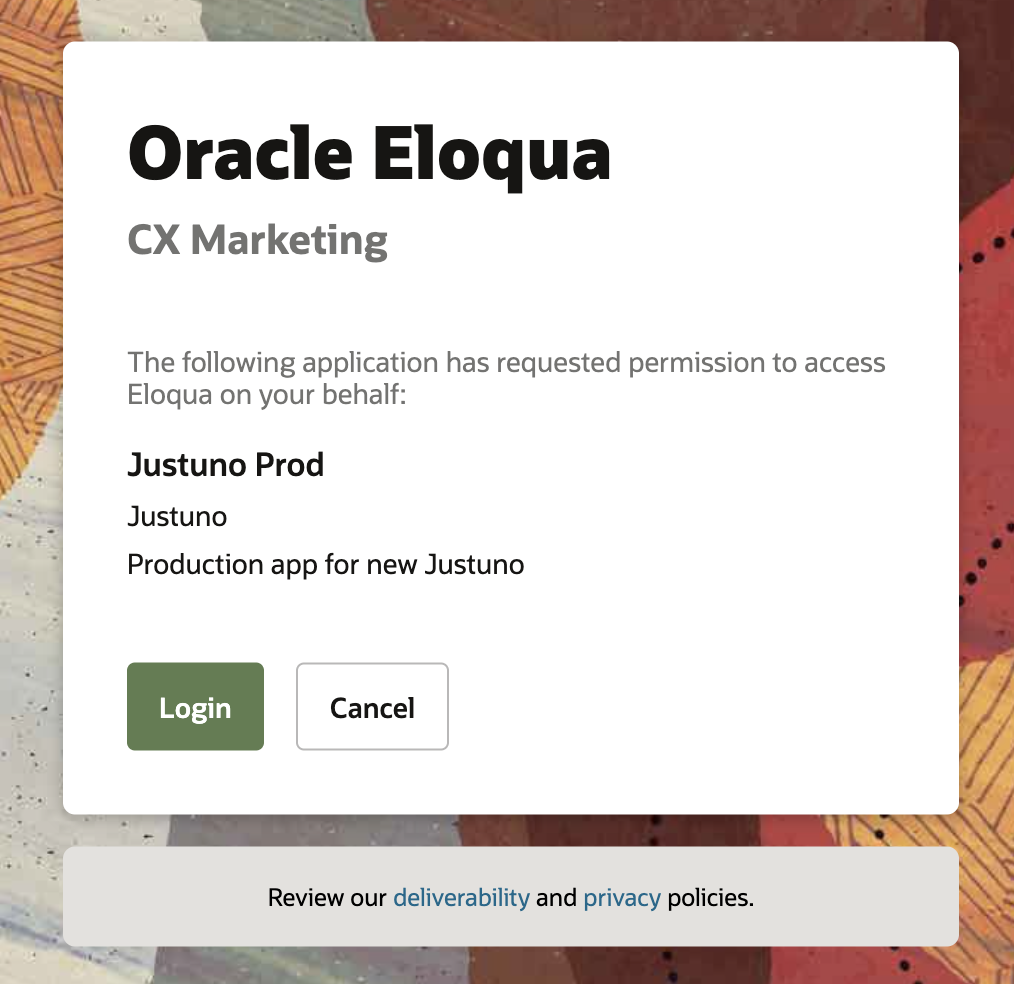
You'll need to enter your Eloqua credentials directly to connect the integration:
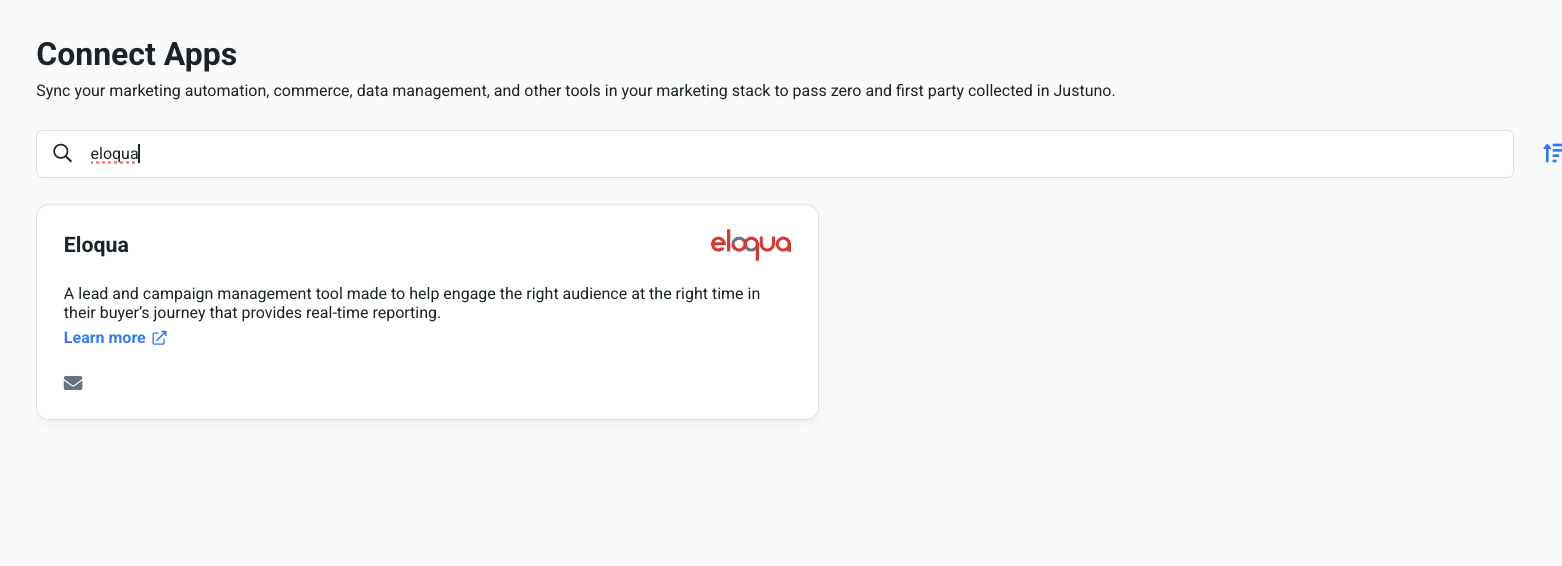
- You can start the flow by clicking on the Eloqua app tile in our App Marketplace.
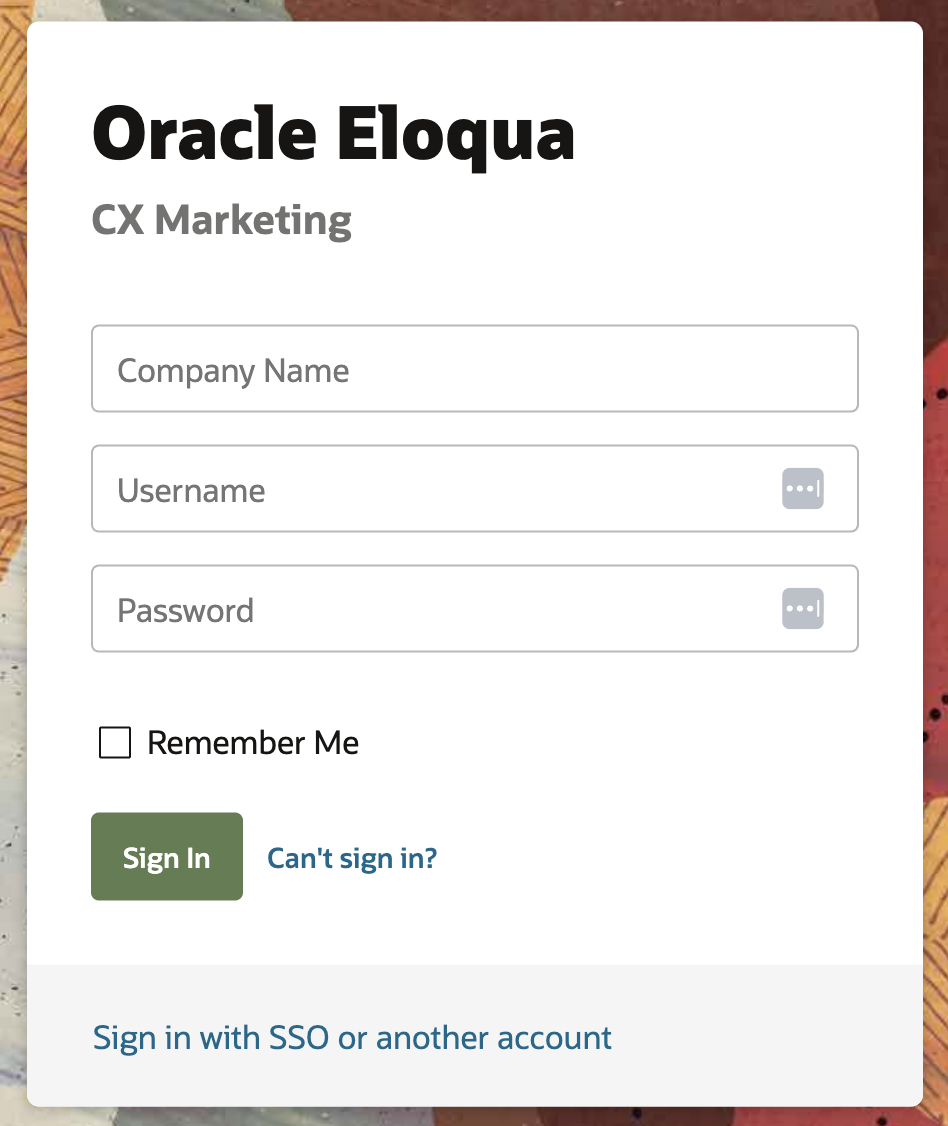
- Company Name (your Eloqua instance/site name)
- Username
- Password
Enter the three Eloqua fields above and submit to authenticate. You'll see the Eloqua app in the My Apps section once you've completed the process.
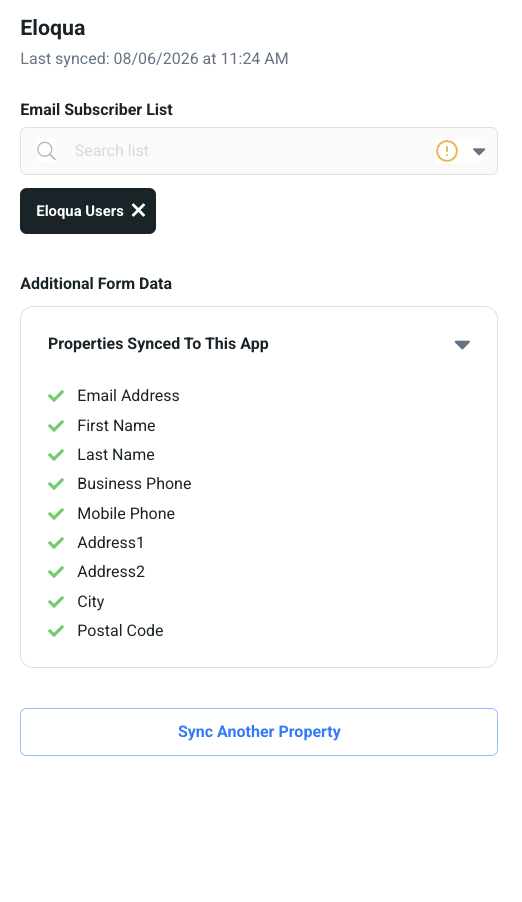
Properties synced to Eloqua by default:
The following Justuno properties are automatically synced to their corresponding Eloqua contact fields and are updated when a visitor subscribes via a Justuno form:
Below is an example of how this will look once you have selected your desired Eloqua list to send the data to.
Syncing your workflows to Eloqua
-
Once Eloqua has been authenticated, go to your desired workflow, and click Edit Workflow. Once in the workflow builder, click the design step containing the form you wish to sync.
Note: The sync to app button will only appear if there is a button in the design with a click action set to Submit Form. If you do not see your sync to app button within the design card in the workflow builder, please confirm your submit button settings in the design studio. You can learn more about building lead capture designs here.
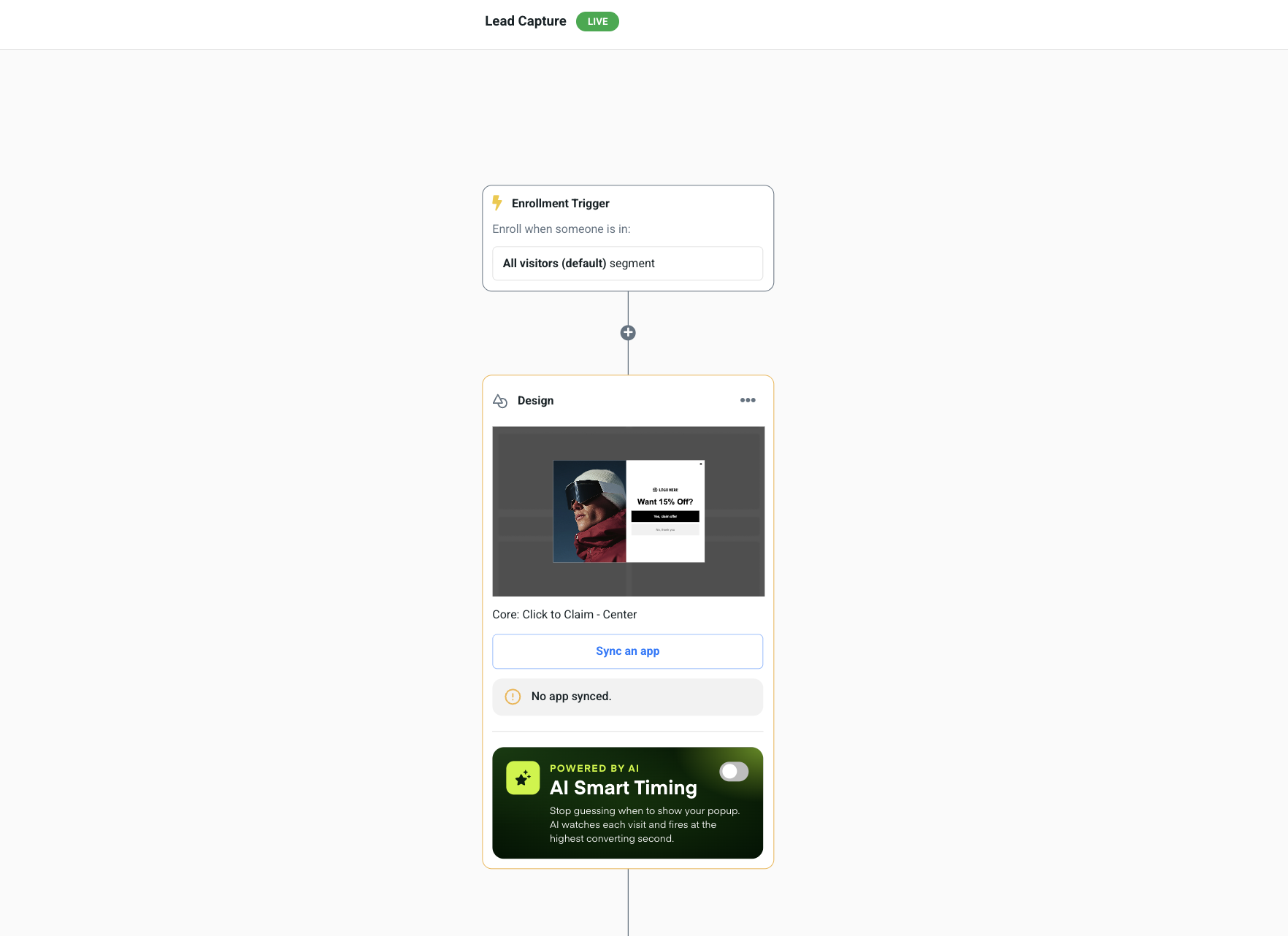
- Click the Sync to App button within the design card. You should see the Eloqua logo and an "Add" button. Click the add button.
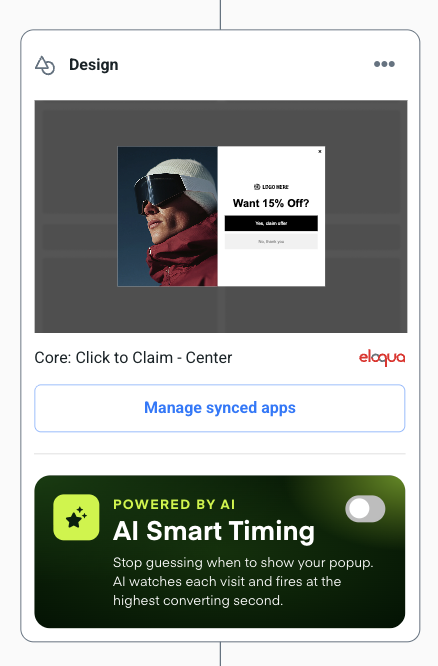
- Select an Eloqua list to subscribe new email contacts to. Click Save. You should now see the Eloqua logo in the design card.
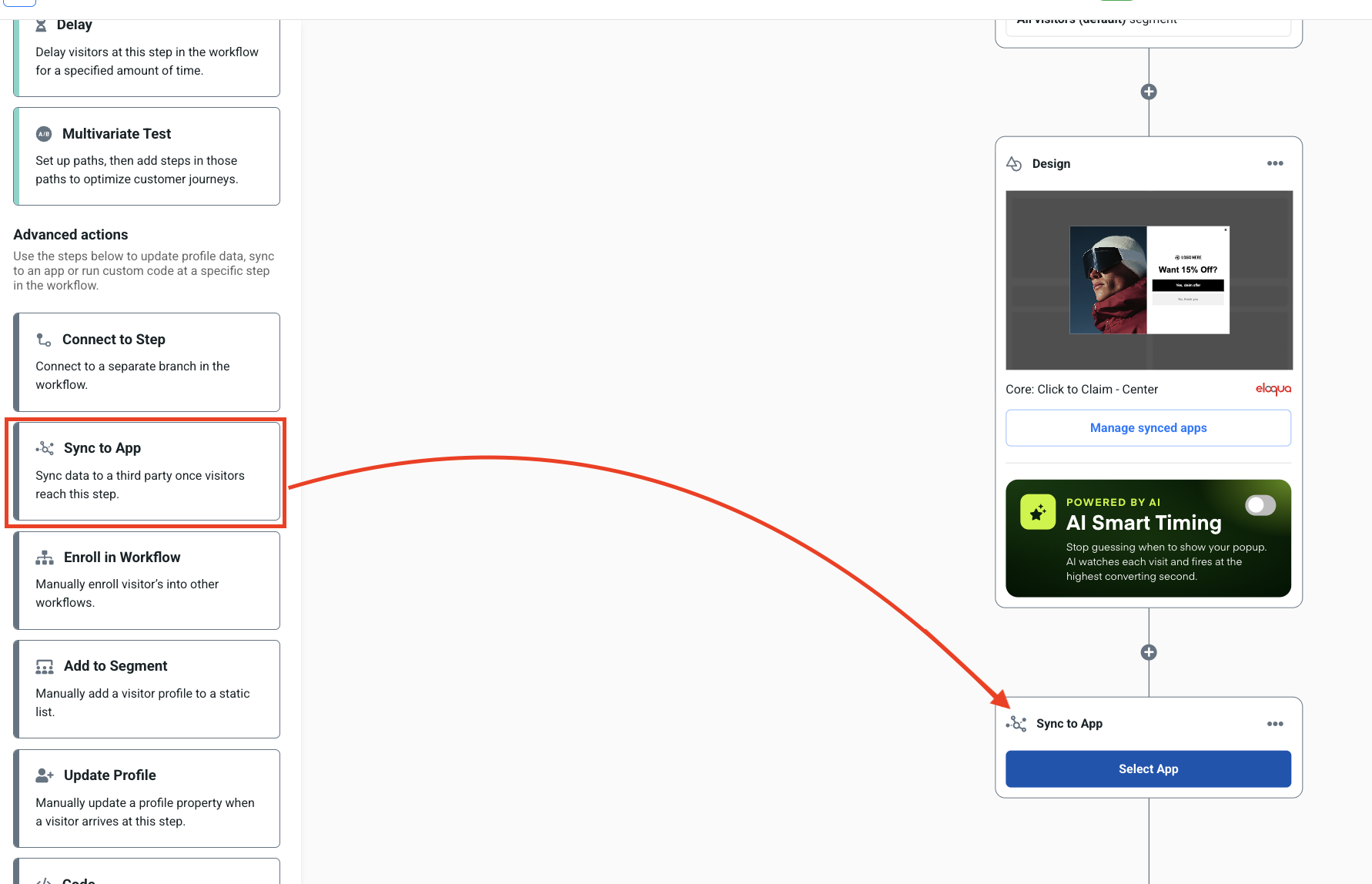
Note: To send contact information to multiple lists/programs you will need to use multiple Sync to App workflow steps. Drag the Sync to App tile to the workflow and click Select App to subscribe contacts and properties to additional lists. Below is an example.
Syncing discount codes & other properties to Eloqua
Within the settings shelf, you'll notice an option to sync any additional property fields used in your design, which will be added to the Eloqua profile as custom fields.
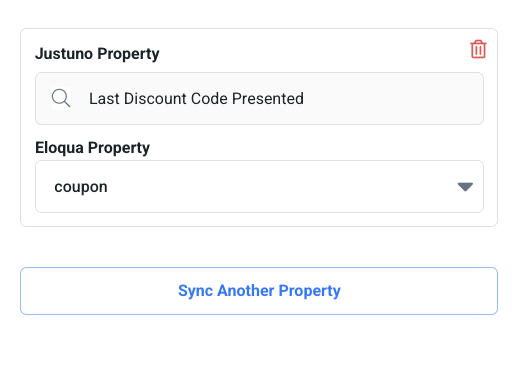
In the above example, 'coupon' exists in Eloqua as a custom contact field/property. So it can be selected from the Eloqua drop-down. To add more properties in Eloqua, you can follow the steps here.
Along with property-based form fields, you can also pass additional Justuno properties to Eloqua by clicking Sync Another Property. You can choose a Justuno property (e.g. Last Discount Code Presented), then you'll select in the corresponding Eloqua field name exactly as shown in your Eloqua, i.e. "coupon".