Trigger a Meta Pixel Lead Event from a Justuno Email Submission
This Justuno article will cover how to trigger a Meta Pixel lead event.
At a glance:
Introduction
Justuno's event framework can be used to trigger Meta Pixel conversion events based on visitor interactions with your promotions. A common use case is firing a Lead event when a visitor submits their email through a Justuno form.
This approach enables more accurate conversion tracking, audience building, and campaign optimization by sending lead activity directly to Meta when a submission occurs. This article demonstrates how to listen for a Justuno form submission event and trigger a Meta Pixel Lead event using JavaScript.
Requirements
Before implementing this integration, ensure that both Justuno and the Meta Pixel are installed and loading on the page where the promotion is displayed.
Justuno Installation
The Justuno embed code must be present on your website and loading successfully. The custom event listeners used in this article rely on the justuno.ready event, which is only available after the Justuno script has initialized.
Meta Pixel Installation
The Meta Pixel must be updated with your pixel ID, then installed before attempting to fire conversion events.
- It can be installed on your site's HTML or JavaScript files directly by editing your website theme files.
- You can place this code in an HTML snippet inside Google Tag Manager or any other tag manager.
- You can use a button layer on a design and apply the click action Execute JavaScript.
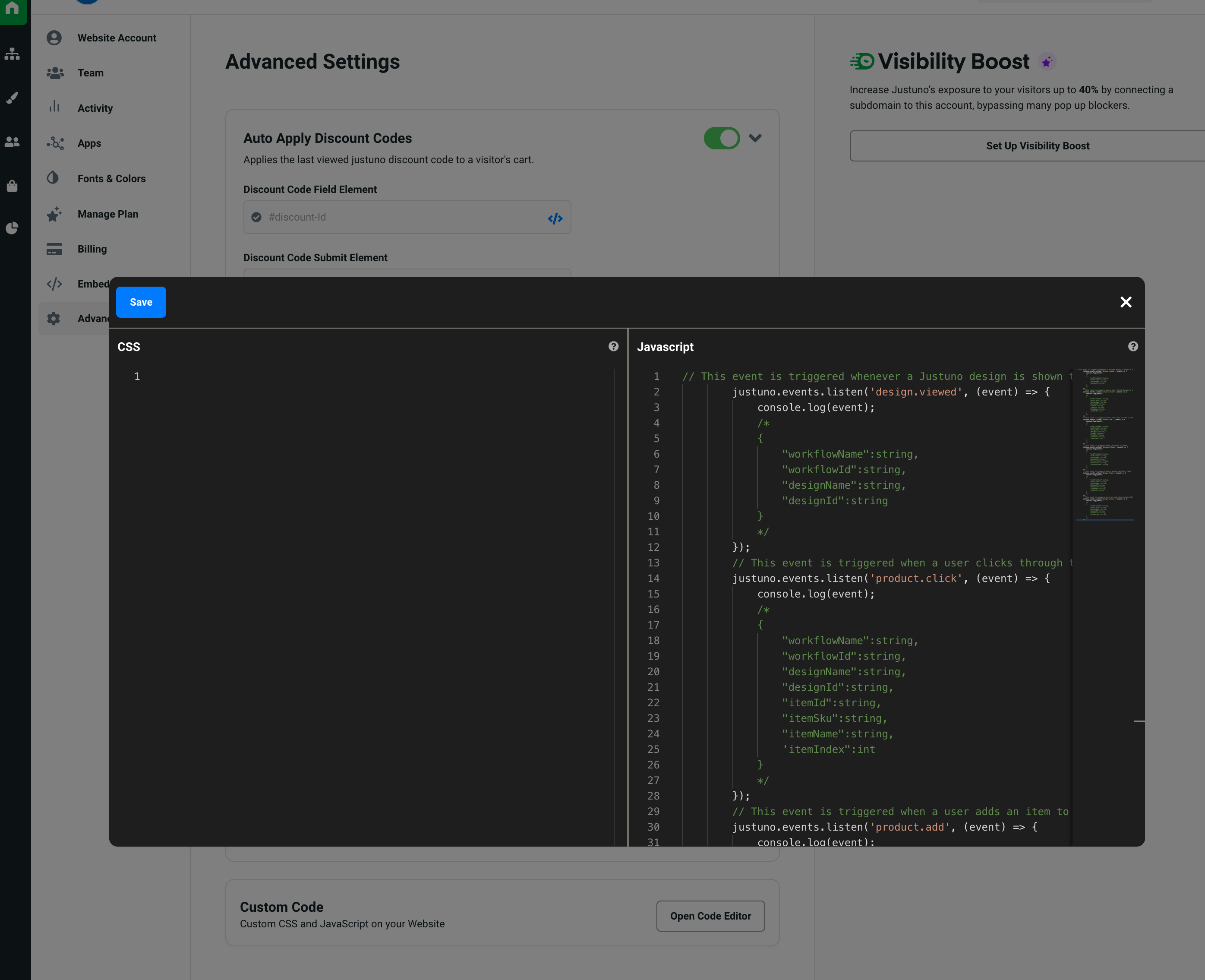
- You can place this code inside the Custom Code section of the Justuno account settings section here (additionally, you can also use the lead event code o make one script). With this route, you would not need the <script> </script> tags themselves, nor the
justuno.ready
More info further below.
The examples in this article use the global fbq function provided by the Meta Pixel.
A standard Meta Pixel installation will look similar to the example below:
<!-- Meta Pixel Code --> <script> !function(f,b,e,v,n,t,s) {if(f.fbq)return;n=f.fbq=function(){n.callMethod? n.callMethod.apply(n,arguments):n.queue.push(arguments)}; if(!f._fbq)f._fbq=n;n.push=n;n.loaded=!0;n.version='2.0'; n.queue=[];t=b.createElement(e);t.async=!0; t.src=v;s=b.getElementsByTagName(e)[0]; s.parentNode.insertBefore(t,s)} (window, document,'script', 'https://connect.facebook.net/en_US/fbevents.js'); fbq('init', 'YOUR_PIXEL_ID'); fbq('track', 'PageView'); </script>
Trigger a Meta Pixel Lead Event from a Justuno Email Submission
If you want to trigger a Meta Pixel Lead event when a visitor submits their email through a Justuno promotion, you can listen for the design.action event and inspect the submitted properties.
window.addEventListener('justuno.ready', () => {
  justuno.events.listen('design.action', (event) => {
    const { actions, propertyUpdates } = event;

    if (
      actions?.includes('submit') &&
      propertyUpdates?.email
    ) {
      const submittedEmail = propertyUpdates.email
        .trim()
        .toLowerCase();

      console.log(
        'Justuno email submitted:',
        submittedEmail
      );

      if (typeof fbq === 'function') {
        // Lead conversion event
        fbq('track', 'Lead', {
          em: submittedEmail
        });
      } else {
        console.warn(
          'Meta Pixel (fbq) not initialized'
        );
      }
    }
  });
});
How it works
- Waits for Justuno to finish loading by listening for the
justuno.readyevent. - Subscribes to the
design.actionevent usingjustuno.events.listen() - Checks whether the action includes
submit - Reads the submitted email address from
propertyUpdates.email - Fires a Meta Pixel
Leadevent when an email is captured.
Requirements
- Justuno must be installed and active on the page.
- The Meta Pixel (
fbq) must already be initialized. - The promotion must collect an email address and expose it through
propertyUpdates.email
Where to place this code
Here are some common places where you can place this code:
- It can be installed on your site's HTML or JavaScript files directly by editing your website theme files.
- You can place this code in an HTML snippet inside Google Tag Manager or any other tag manager.
- You can use a button layer on a design and apply the click action Execute JavaScript.
- You can place this code inside the Custom Code section of the Justuno account settings section here (additionally, you can also use the lead event code o make one script). With this route, you would not need the <script> </script> tags themselves, nor the
justuno.ready